

Multi-Factor Authentication
The MHRA has implemented Multi-Factor Authentication (MFA) to the Yellow Card website and app to enhance security to protect your personal data.
Background
MFA is an effective security method used to protect data and accounts from unauthorised access. It works by adding an additional layer of security beyond the standard username and password, before granting access to an account such as Yellow Card.
When logging into Yellow Card, you will be asked to verify your identity using a second factor (e.g. code sent via text message, voice call, or authentication app). This helps to safeguard your personal data and prevent unauthorised access, even if your password is compromised.
Why are we implementing MFA?
MFA offers enhanced security of Yellow Card accounts using a second layer of defense against unauthorised access. This is vital given Yellow Card accounts contain sensitive personal data. This enhancement therefore aims to further protect reporter and patient privacy.
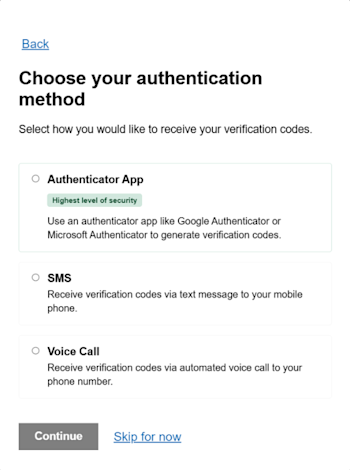
Authentication Methods
Mobile authenticator app: the most secure method. Generates a one-time 6-digit code, works offline and abroad, and can require biometrics. Examples include Microsoft authenticator, Google authenticator and Authy.
SMS (text message) - Receive a one-time 6-digit code via text to your mobile phone.
Voice call - Receive a one-time 6-digit code via automated call, suitable for mobiles or landlines.
How to use MFA
Before you start
Have your phone, tablet, or another device handy.
If you prefer not to use a phone, you can use an authenticator app on a PC, tablet or other smart device.
Sign in to Yellow Card
Go to the Yellow Card website or app and click Sign in.
Enter your email address and password, then click Continue.
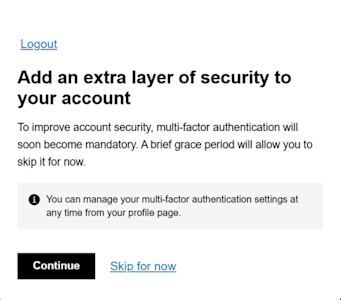
If you haven’t set up MFA before, a setup screen will appear after you sign in.
Choose your MFA method
Pick one of the following options:
Authenticator app (recommended) e.g. Microsoft Authenticator, Google Authenticator, Authy, or another similar app.
Install an authenticator app on your phone or tablet via the App Store or Google Play Store.
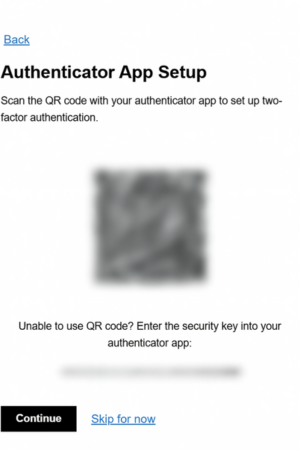
In Yellow Card, select Authenticator app. A QR code and a setup key will appear.
Open the authenticator app, choose “Add account” and scan the QR code with your camera.
If the QR scanner does not work, select the option to enter the setup key manually and type the code shown on screen.
The app will show a 6-digit code. Type it into Yellow Card and click Verify. If the code entered is correct, you will gain access to your account.
SMS (text message) or voice call
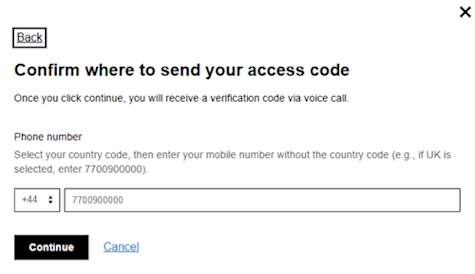
Select SMS or Voice call.
Enter your phone number (ensure to use the correct country code).
Click Send code.
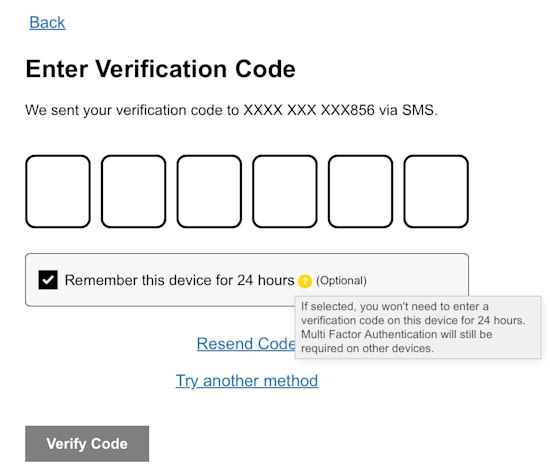
When you receive the code, type the 6-digit code into the box and click Verify. If the code entered is correct, you will gain access to your account.
Select ‘Remember this device’ (optional) to avoid entering an MFA code on the same browser and device for the next 24 hours. ⚠️ Do not use this option on public or shared computers. ⚠️
How to add or manage your MFA methods
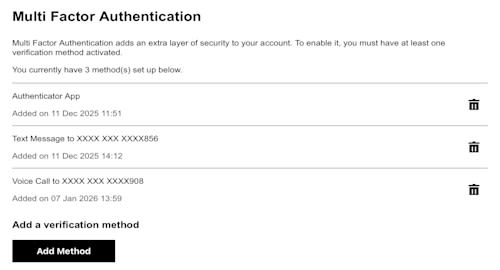
You can add up to four methods in your profile later. Please note that the same phone number cannot be used for the same method twice. Any change will send a confirmation email to your registered email address for security purposes.
Sign in to your Yellow Card account.
Go to Account → Multi Factor Authentication
From this page you can:
Add a new MFA method (recommended - so you can still sign in if you lose access to one method)
Remove an existing method
Update or replace a phone number.
What to do if you didn't receive a code
Try these first:
Check your phone signal and that the number is correct.
If using an authenticator app, make sure your device time is set to automatic.
Try an alternative method.
Click Resend code and wait a minute.
If you still can’t sign in, contact mhracustomerservices@mhra.gov.uk for help with a secure reset.
What to do if you experience issues with MFA
Please be assured that you can still submit Yellow Card reports without logging in; however, guest submissions won’t appear in your account. We can retrospectively link your report to an account if you provide the reference number and your email address to yellow.card@mhra.gov.uk.
If you are still unable to authenticate your account after reviewing our FAQs below, please contact our customer services team at mhracustomerservices@mhra.gov.uk. Include a detailed description of the issue, the email address linked to your Yellow Card account, your authentication method, and your phone number (for SMS or voice call issues) so we can investigate as quickly as possible.